Dashboard Check
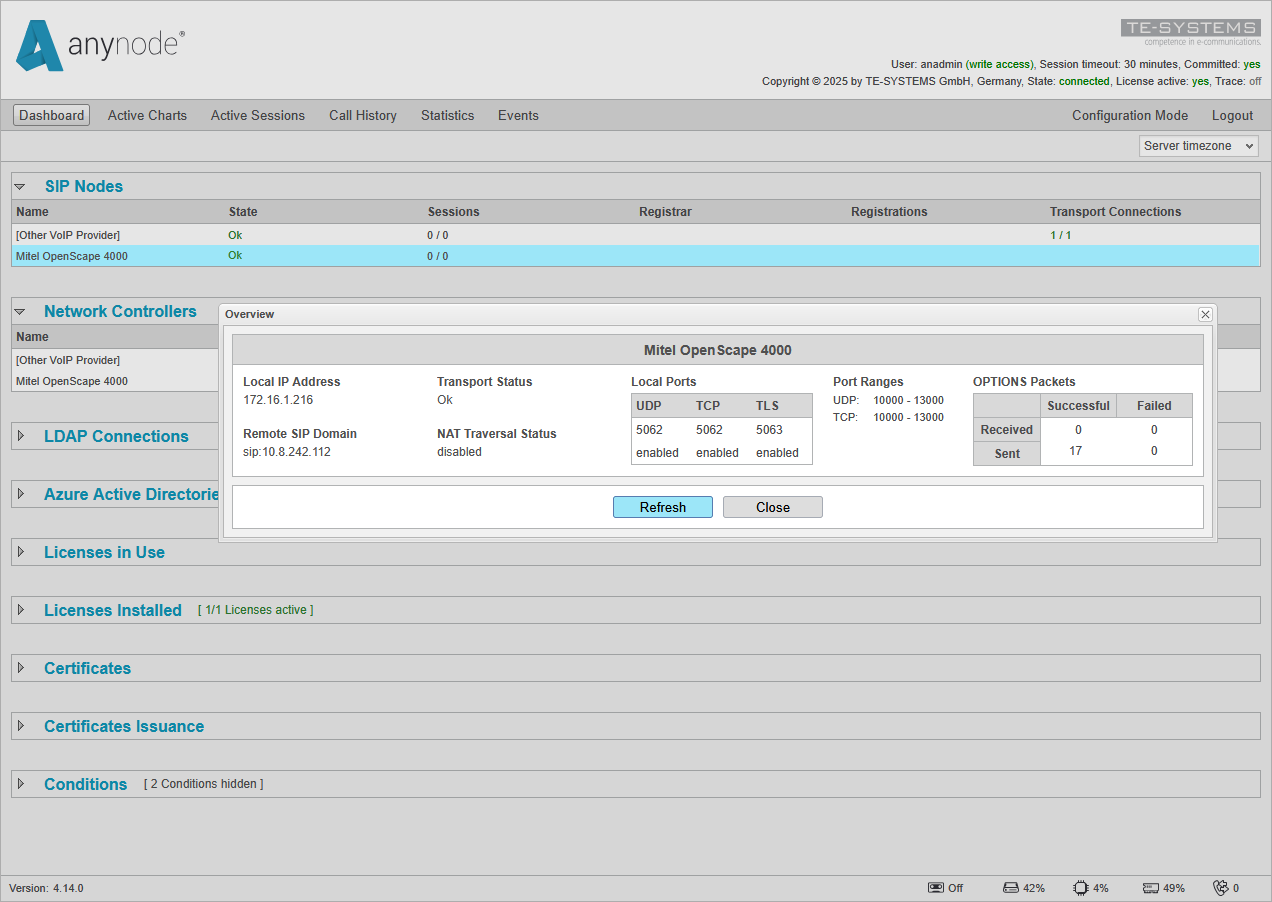
To view the overall status in anynode's Dashboard, switch to Monitor Mode from Configuration Mode in the top right menu.
Under SIP Nodes, you can check the operating status of all configured node objects. A green OK state of a node indicates that the node is in operation.
By double-clicking on the Mitel OpenScape node, you can access more detailed information, including the number of successfully received Options Packets.
The upper value under Received shows that the OpenScape SIP Trunk never sends SIP Options to anynode, while the lower value under Sent indicates that anynode is sending SIP Options and receiving a 200 OK response from the Mitel OpenScape 4000 gateway.
You can update the information displayed in the Overview dialog by clicking .
If adopted, anynode's Wizard automatically sets appropriate Target URIs and displays them as Transport Connections. The presence of imported or retrieved certificates can be reviewed in the Dashboards' Certificates and Certificates Issuance sections.